
-
This extension display Unlimited Product Accessories for specific products. we can also use it As Recommended accessories. With it User can manage it easily beasuse its all control form admin panel so as per requirment you can display Recommended accessories on specific product page. customers can purchase product accessories easily.
Recommended Product Accessories
Installation of Accessories to products 4.x.x
-
Step 1: Zip Folder

Step 2
Go To Admin Panel > Extensions > Installer > Click Blue Button

Step 3: Upload TMD Recommended Product Accessories Module Zip

Step 4: After zip Upload Click Green Install Button

Step 5: After Click Show Message (Success: The extension has been installed!)

Step 6
Go To Admin Panel > Extensions > Extensions > Select Module > Click Green Install Button

After Install Click Edit Button > First Generate License key > General Tab > Setting

Language Tab Setting

Color Tab Setting

Custom CSS Tab Setting and Save It

Step 7
go To Admin Panel > Catalog > Product > Edit Any One Product > Product Accessories Tab > Select Product and Save It

Product Page Display > In Tab

Admin Select > Out Tab

Product Page Display > Out Tab

Admin Select > Dropdown

Product Page Display > Dropdown

Select Dropdown product and click cart button 2 product show

Checkout Page

Sale > Order > Show 2 products

Installation of Accessories to products 3.0.2.0
-
-
Step 1: Zip Extract

Step 2: One Folder

Step 3:
Upload these folder by ftp correct location for example (admin to admin , catalog to catalog, system to system) (no core file effect)

Step 4:
Go To Admin Panel > Extensions > Modifications > Click On Refresh Button

Step 5:
Go To Admin Panel > Extensions > Extensions > Select Modules > Click On Tmd Accessories to Products Green Install Button and After Click Blue Edit Button

Step 6: General Tab

Step 7: Language Tab

Step 8: Color Setting Tab

Step 9: Custom CSS

Step 10:
Go To Admin Panel > Catalog > Products > Product Accessories Tab > Select Product and save it

Step 11:
Go To Admin Panel > Extensions > Extensions > Select Modules > Click On Tmd Accessories to Products click Edit Button > Select In Tab

In Tab

Step 12: Select Out Tab

Out Tab

Step 13: Select DropDown Tab

DropDown Tab

Add To cart

Checkout

-
Installation of Accessories to products 2.3.x
-
-
Step 1: Zip Extract
Step 2: One Folder
Step 3:
Upload these folder by ftp correct location for example (admin to admin , catalog to catalog, system to system) (no core file effect)
Step 4:
Go To Admin Panel > Extensions > Modifications > Click On Refresh Button

Step 5:
Go To Admin Panel > Extensions > Extensions > Select Modules > Click On Tmd Accessories to Products Green Install Button and After Click Blue Edit Button

Step 6: General Tab
Step 7: Language Tab
Step 8: Color Setting Tab
Step 9: Custom CSS
Step 10:
Go To Admin Panel > Catalog > Products > Product Accessories Tab > Select Product and save it

Step 11:
Go To Admin Panel > Extensions > Extensions > Select Modules > Click On Tmd Accessories to Products click Edit Button > Select In Tab
In Tab
Step 12: Select Out Tab
Out Tab
Step 13: Select DropDown Tab
DropDown Tab
Add To cart
Checkout
-
Installation of Accessories to products 2.x.x_2.2.x
-
-
Step 1: Zip Extract
Step 2: Two Folder

Step 3:
Upload these folder by ftp correct location for example (admin to admin , catalog to catalog , image to image , system to system) (no core file effect)

Step 4:
Go To Admin Panel > Extensions > Extension Installer > Click On Upload Button

Step 5: Upload Tmd Accessories to Products Module XML

Step 6:
Go To Admin Panel > Extensions > Modifications > Click On Refresh Button

Step 7:
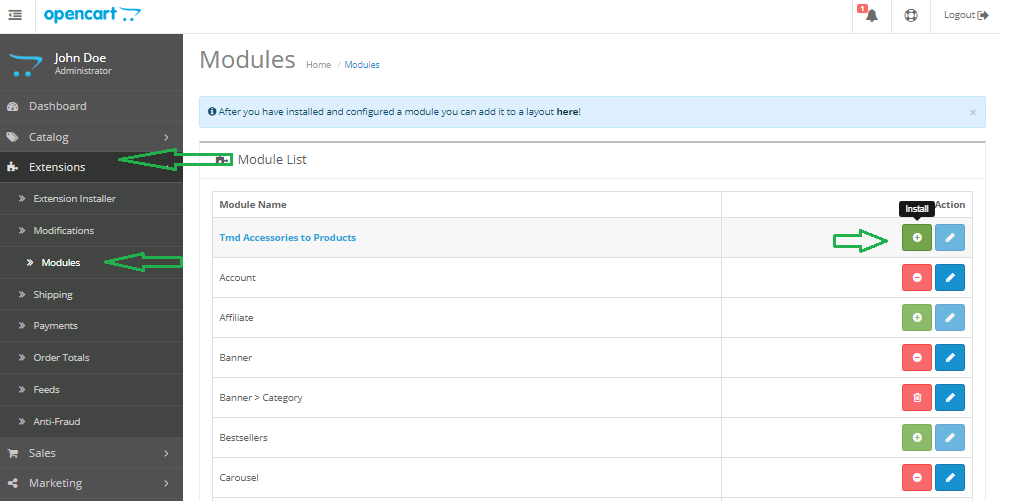
Go To Admin Panel > Extensions > Modules > Click On Tmd Accessories to Products Green Install Button and After Click Blue Edit Button
Step 8: General Tab
Step 9: Language Tab
Step 10: Color Setting Tab
Step 11: Custom CSS
Step 12:
Go To Admin Panel > Catalog > Products > Product Accessories Tab > Select Product and save it
Step 13:
Go To Admin Panel > Extensions > Extensions > Select Modules > Click On Tmd Accessories to Products click Edit Button > Select In Tab
In Tab
Step 14: Select Out Tab
Out Tab
Step 15: Select DropDown Tab
DropDown Tab
Add To cart
Checkout
-
Installation of Accessories to products 1.5.x
-
-
Step 1:

Step 2:

Step 3:

Step 4:

Step 5:

Step 6:

Step 7:

Step 8:

Step 9:


Step 10:

Step 11:


-

Contact Us
If you have question which is beyond this knowledgebase Kindly contact us
Write to Us Now